Tonight and Schedule
The two pages you open every day. Tonight shows one day's classes and which ones are short; Schedule shows the week, the month or the next 30 days.
For owners, managers and teachers
Tonight answers "what's on today, and is anything wrong?" Schedule answers "what's on this week?" Both open any class with a click.
Where: sidebar → Tonight (the first item) and Schedule. Teachers have Tonight and My classes instead of Schedule.
Who: everyone on the team. Teachers see only the classes they teach.
Before your school is live#
While your school still has something blocking it from going live, Tonight is replaced by Go live in the sidebar, and opening the dashboard takes owners and managers there. It comes back as soon as nothing blocks. See Go-live checklist.
Tonight#
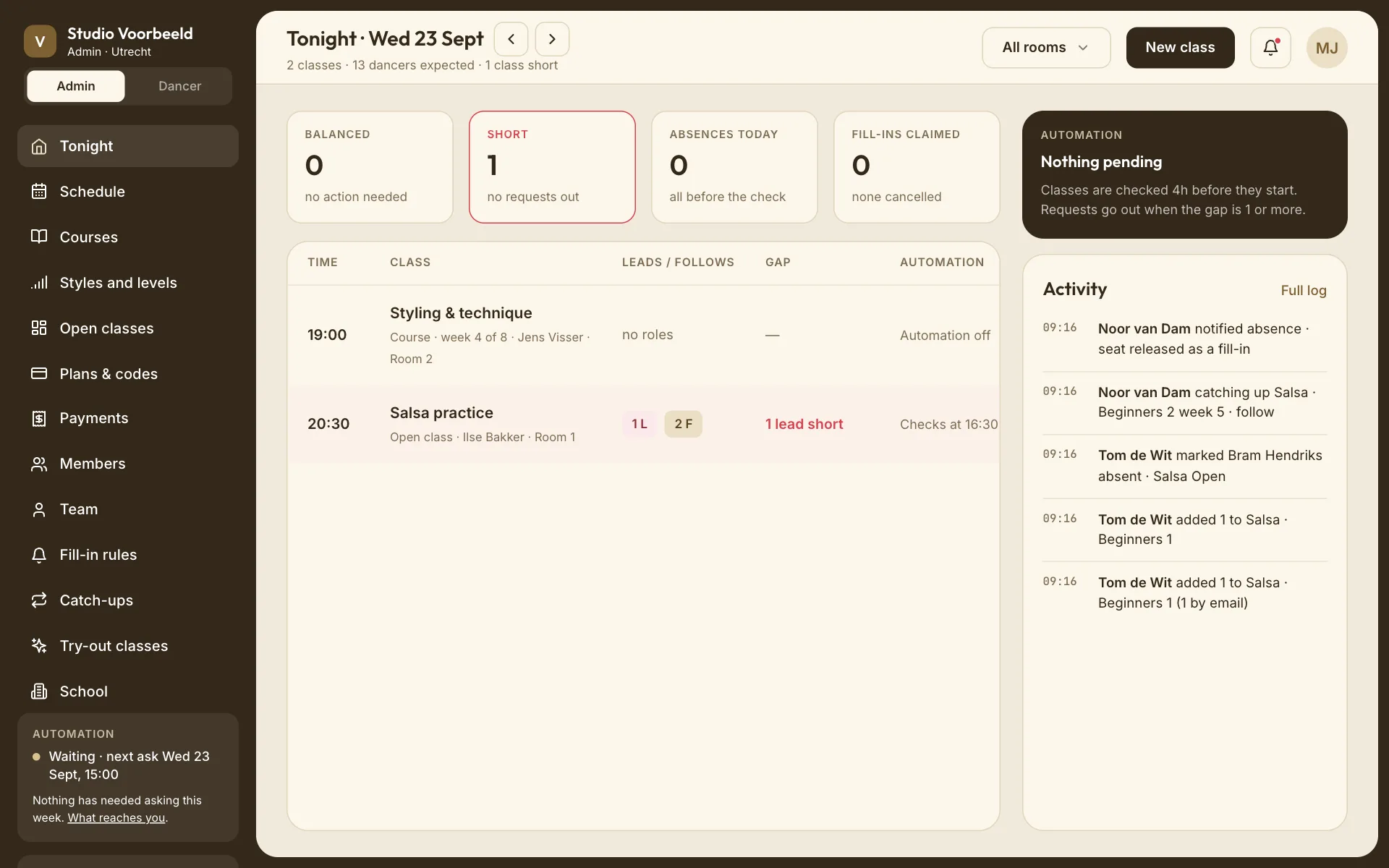
The title says Tonight · Wed 23 Sept for today, or the full date for another day. Use the arrows beside it to go a day back or forward, and Today to come back.
Under the title: how many classes, how many dancers are expected, and how many classes are short.
The four tiles#
| Tile | What it counts |
|---|---|
| Balanced | Classes with leads and follows where the numbers are even. |
| Short | Classes where one role is short, by any number. Red when at least one is short enough for your fill-in rule to act. |
| Absences today | Course dancers who said they can't come. The line under it says how many told you after your fill-in check. |
| Fill-ins claimed | Places claimed through fill-in requests, and how many were cancelled again. |
Events and solo courses have no roles, so they're never balanced or short.
The table#
One row per class, in time order:
| Column | Shows |
|---|---|
| Time | Start time. |
| Class | Name, kind, teacher (or no teacher), and N filling in or N catching up when there are any. Register late marks a class whose register was taken late. |
| Leads / follows | The two counts, with the short role marked. no roles for events and solo courses. |
| Gap | Balanced, or how many of which role it's short: "1 follow short". |
| Automation | What the fill-in automation is doing for this class (below). |
The Automation column reads:
| It says | Meaning |
|---|---|
| Asked 6 dancers · 1 claimed · 1 still short | A request is live. |
| Filled | The request got everyone it needed. |
| Checks at 16:00 | Short enough to ask, and the check hasn't run yet. |
| Too close to start | Short enough to ask, but the check time has passed. |
| Below the ask threshold | Short, but by less than your fill-in rule asks for. |
| Nothing to do | Balanced. |
| Stopped by hand | Someone on your team chose Stop asking. |
| Closed by the check | The automation closed its own request, for example because the gap closed. |
| Automation off | Your school's fill-in automation is off, or the class has no roles. |
| Cancelled | The date was cancelled. |
The side panel#
For owners and managers, the side panel shows one of:
- Still short: the next class with a live request nobody has taken. It says how many dancers were asked. You can Stop asking from here.
- Stopped asking: a class where someone stopped the request. Start asking again undoes it.
- Automation: otherwise, a one-line summary of your fill-in rule, or that it's off.
Below it is the latest activity at your school. The full list is under Notices and activity.
The page updates by itself as bookings, claims and changes come in.
Filter by room#
All rooms at the top lets you look at one room. If you teach in more than one building, rooms are listed per building.
Schedule#
Week, Month or List at the top. The arrows move a week or a month; Today comes back to now. List shows the next 30 days.
In the week view each class shows its time, room, name, and a short note:
- a course: wk 3 in the name, and "14 enrolled · balanced";
- an open class: "1 credit · 9 booked";
- a class short enough to ask: "2 follows short", highlighted;
- a cancelled date: cancelled, greyed out.
Colours tell kinds apart: courses, credit or paid open classes, free classes, and cancelled dates.
For owners and managers, an evening with nothing on shows Free all evening. Click it to start a new open class on that weekday.
New class#
New class in the top bar (owners and managers) offers New open class or New course. See Course editor and Open-class editor.
Open a class#
Click any class, on either page, to see its roster, balance, fill-in request and history. See Read a lesson roster.